CONNECT AN AI ASSISTANT
Ask your AI assistant about the deals in LeadWise.
Connect a compatible AI assistant to your CRM. Ask it to find customer information, review deals that need attention, and suggest follow-up tasks. It can access only the CRM information your permissions allow.
How the connection works
Ask in a compatible assistant
Ask questions about deals, companies, or priorities in your assistant.
Use permitted LeadWise records
LeadWise provides context and analysis tools within your user permissions.
Review proposed changes in LeadWise
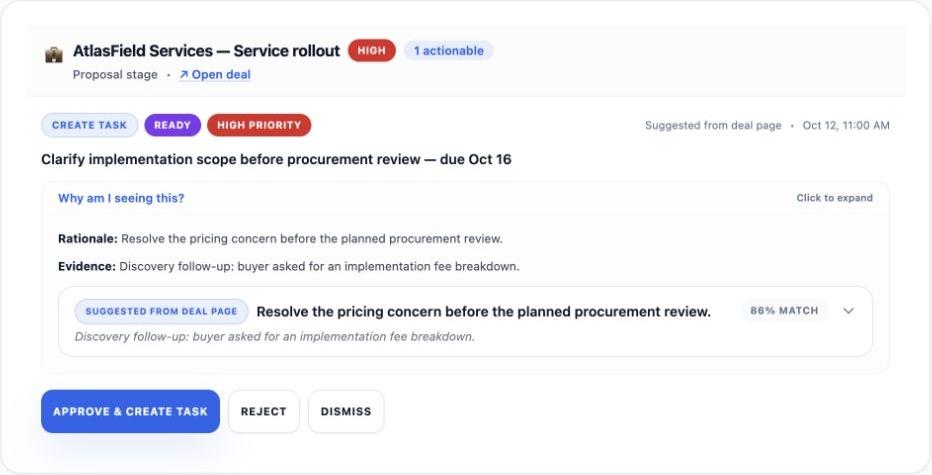
Proposed follow-up tasks appear in your AI Queue for human approval.
Conceptual diagram · Permissions and human approval apply at every step
WHAT YOU CAN DO
Find records, review deals, and suggest follow-ups.
Find customer information
Ask about companies, contacts, deals, tasks, and saved activity without copying each record into a chat.
Review a deal
Ask the assistant to examine the deal information it can access and explain what may need attention.
Suggest a follow-up
Ask for a task or deal update. Review the suggestion in LeadWise before approving it. The assistant cannot approve its own suggestion.
AN EXAMPLE QUESTION & ANSWER
See the question, the deal information, and a suggested follow-up.
Question asked to assistant
“Which deals need attention this week? Explain why and suggest follow-up tasks.”
Here is one example deal that needs attention.
AtlasField Services — Service rollout
Why it needs attention:
- The buyer asked for a breakdown of implementation fees before procurement review.
- The final decision-maker has not been confirmed.
Suggested follow-up:
Prepare the implementation-fee breakdown and confirm who makes the final decision.
Information used: Saved discovery note and deal information.
A connected assistant can propose a follow-up task. Review it in LeadWise’s AI Queue before approving.
See how task review works →Authored example, not a recorded AI response. Actual answers depend on your CRM records, permissions, and chosen assistant.
REVIEW IN LEADWISE
Check suggested changes before approving them.
A connected assistant can propose a task or deal update. Open the AI Queue to check the reason and proposed changes, then approve or reject the suggestion. The assistant cannot approve it for you.
SETUP AND REQUIREMENTS
What you need to connect an assistant.
You need an existing LeadWise account and an AI assistant that supports Model Context Protocol (MCP), the connection standard LeadWise uses. For supported connections, sign in through your browser and review the requested permissions. Setup steps vary by assistant.
Available models and subscription requirements depend on your assistant provider.
Availability note: Gmail and Google Calendar connections are currently unavailable. Email information imported through an assistant does not sync your inbox. Calendar import through assistants is also unavailable.
Use your CRM records in your AI conversations.
Request early access to LeadWise, or log in if you already have an invitation.